

Overview
Voice Settings control the core identity of your AI agent. Navigate to the Settings tab and select Voice Settings to begin.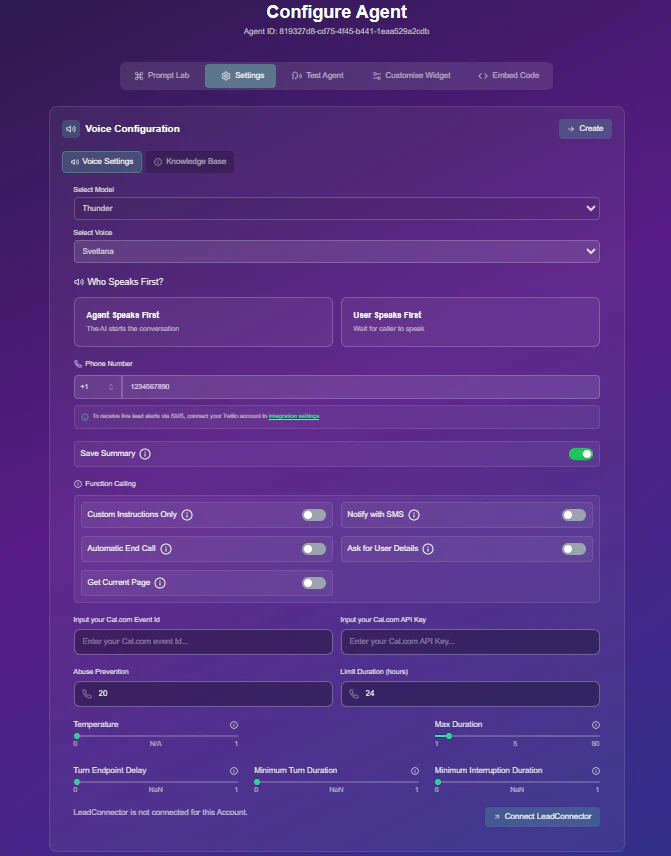
Core Configuration
- Model & Voice: Choose the AI model (e.g., Thunder) and a voice accent that matches your brand.
- Conversation Flow:
- Agent Speaks First: Optimized for outbound cold calling.
- User Speaks First: Optimized for inbound customer support.
- Phone Number: Select the dedicated line for this specific agent.
Video Guide: Voice Setup
Watch a quick tutorial on selecting the right model and configuring your agent’s voice.Function Calling
Enable advanced logic to make your agent more capable.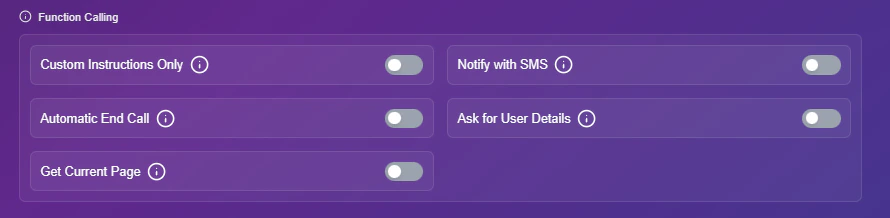
Video Guide: Custom Instructions
Learn how to use custom instructions and advanced voice model options to control agent behavior.1. Custom Instructions Only
1. Custom Instructions Only
If enabled, the agent will strictly follow the instructions/prompt you provide and bypass its default starting setup.
2. Notify with SMS
2. Notify with SMS
Turn this ON to receive an automated notification via SMS regarding call activities.
3. Automatic End Call
3. Automatic End Call
Enabling this allows the agent to intelligently hang up the call when the user indicates they want to end the conversation or says “end call”.
4. Ask for User Details
4. Ask for User Details
Turn this ON to allow the agent to proactively ask for and capture user information such as name, email, and phone number during the dialogue.
5. Get Current Page
5. Get Current Page
This allows the agent to retrieve details and components of the current webpage for better context during the interaction.
Video Guide: Setting up Integrations
Calendar Integration
Enable your agent to book appointments in real-time. Choose your provider below:- Cal.com
- LeadConnector (GHL)
If you use Cal.com, you can link it directly via API credentials.
- Enable Booking: Toggle on Calendar Booking in the Function Calling menu.
-
Input Credentials: You will be prompted to enter the following details:
- Cal.com Event Id: The unique ID for your specific booking event.
- Cal.com API Key: Your personal API key to authorize Snowie.


