

Overview
The Agency tab is your command center. Here you configure the “look and feel” of the platform so your clients interact with your brand, not ours.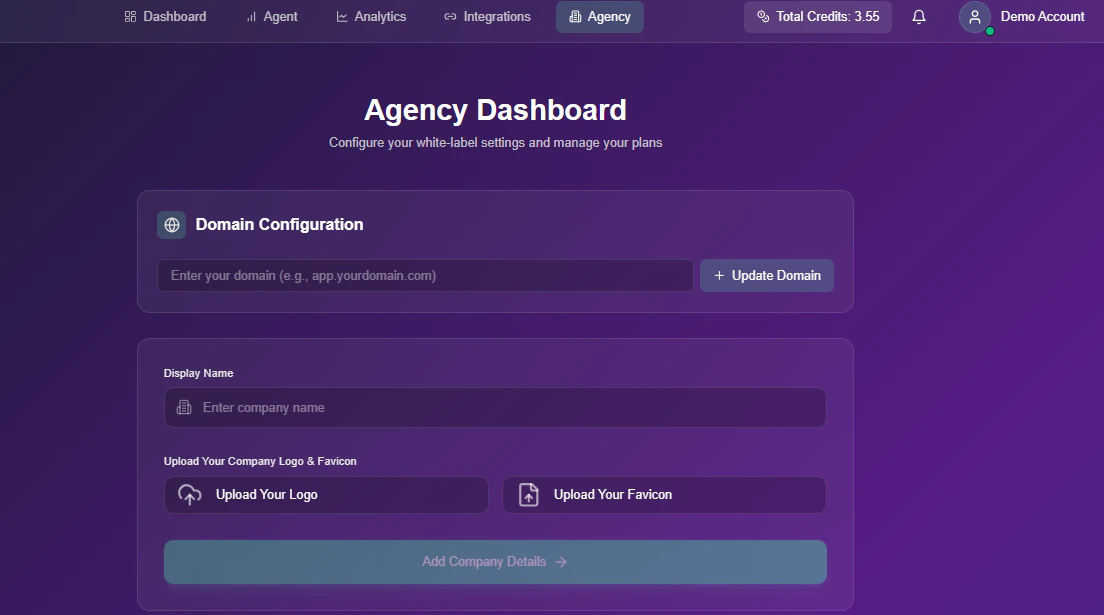
White-Label Configuration
Domain Configuration
Host the platform on your own URL (e.g.,app.myagency.com) so clients never see “Snowie.ai”.
1
Enter Domain
Type your desired subdomain (e.g.,
YourDomain.com) in the input field.- Click Update Domain to generate your specific DNS requirements.
2
Configure DNS
You will be provided with a Required DNS Record (usually an
A record).- Log in to your DNS provider (e.g., GoDaddy, Cloudflare).
- Add the record exactly as shown in the dashboard.
3
Verify Connection
Click the Verify button to confirm the DNS configuration.
- Note: Propagation can take anywhere from a few minutes to 24 hours depending on your provider.
Company Branding
Customize the visual identity of the dashboard.- Display Name: The name of your agency (e.g., “Apex Solutions”).
- Company Logo: Upload your main logo (SVG or PNG recommended).
- Favicon: Upload the small icon that appears in the browser tab.
Email Customization
Control the branding of the “Welcome Email” sent to new clients.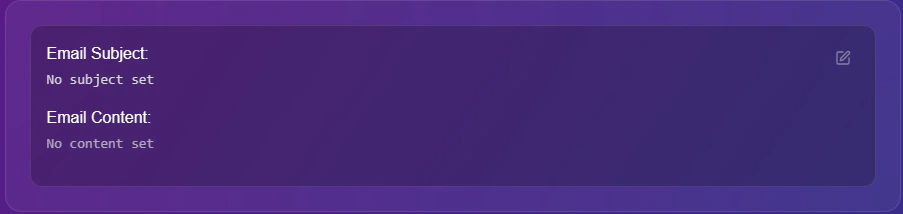
Email Template Editor