> ## Documentation Index
> Fetch the complete documentation index at: https://support.snowie.ai/llms.txt
> Use this file to discover all available pages before exploring further.
# Credits & Billing
> Manage your usage balance and auto-recharge settings.
## Overview
The **Credits** ecosystem fuels your AI workforce. Every minute of conversation consumes credits from your balance. To manage this, select **Credits** from the profile dropdown menu.
## Purchase Credits
Select a one-time top-up package that fits your immediate needs.
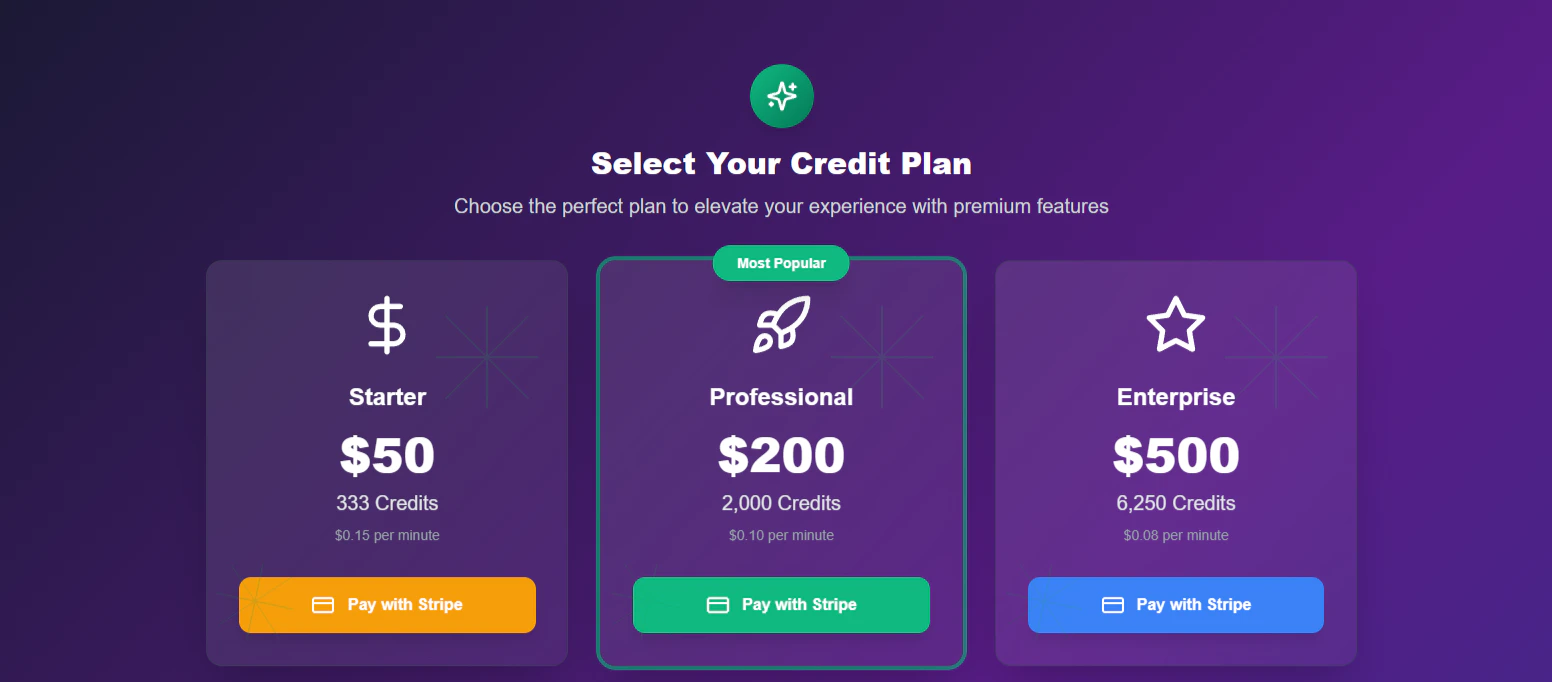 * **Starter:** Ideal for initial testing and low volume.
* **Professional:** The standard choice for growing businesses.
* **Enterprise:** High-volume packages for power users.
Click **Pay with Stripe** to complete the purchase securely.
***
## Auto-Recharge
Ensure your agents never go offline by automating your balance top-ups.
Locate the **Auto-Recharge** toggle switch at the top of the settings card.
* **Starter:** Ideal for initial testing and low volume.
* **Professional:** The standard choice for growing businesses.
* **Enterprise:** High-volume packages for power users.
Click **Pay with Stripe** to complete the purchase securely.
***
## Auto-Recharge
Ensure your agents never go offline by automating your balance top-ups.
Locate the **Auto-Recharge** toggle switch at the top of the settings card.
 Switch it to **On** to reveal the configuration options.
Define your safety net rules:
Switch it to **On** to reveal the configuration options.
Define your safety net rules:
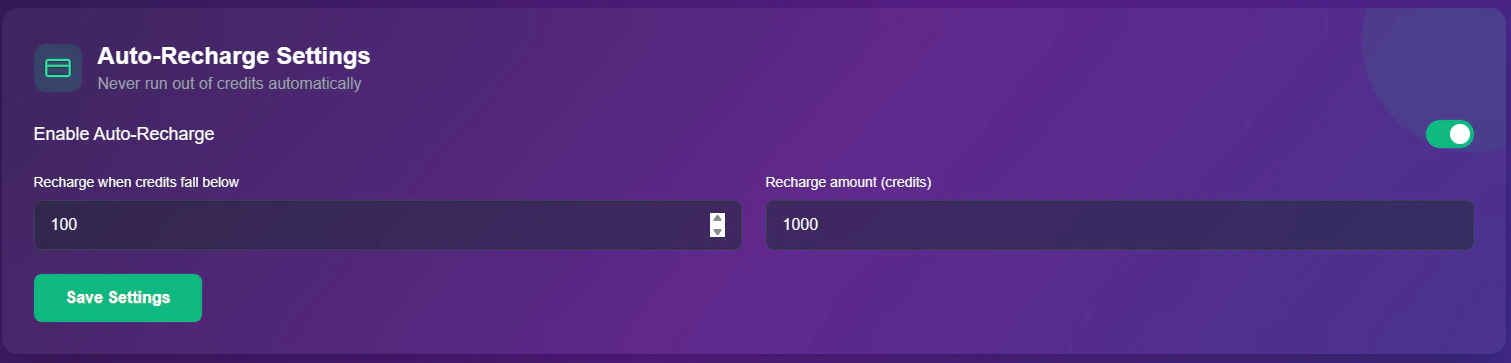 * **Threshold:** The "Low Balance" warning level (e.g., *Recharge when credits fall below 100*).
* **Top-Up Amount:** The specific volume to purchase automatically (e.g., *Buy 1000 credits*).
Click **Save Settings** to activate the automation.
***
## Transaction History
A detailed log of every credit interaction on your account.
* **Threshold:** The "Low Balance" warning level (e.g., *Recharge when credits fall below 100*).
* **Top-Up Amount:** The specific volume to purchase automatically (e.g., *Buy 1000 credits*).
Click **Save Settings** to activate the automation.
***
## Transaction History
A detailed log of every credit interaction on your account.
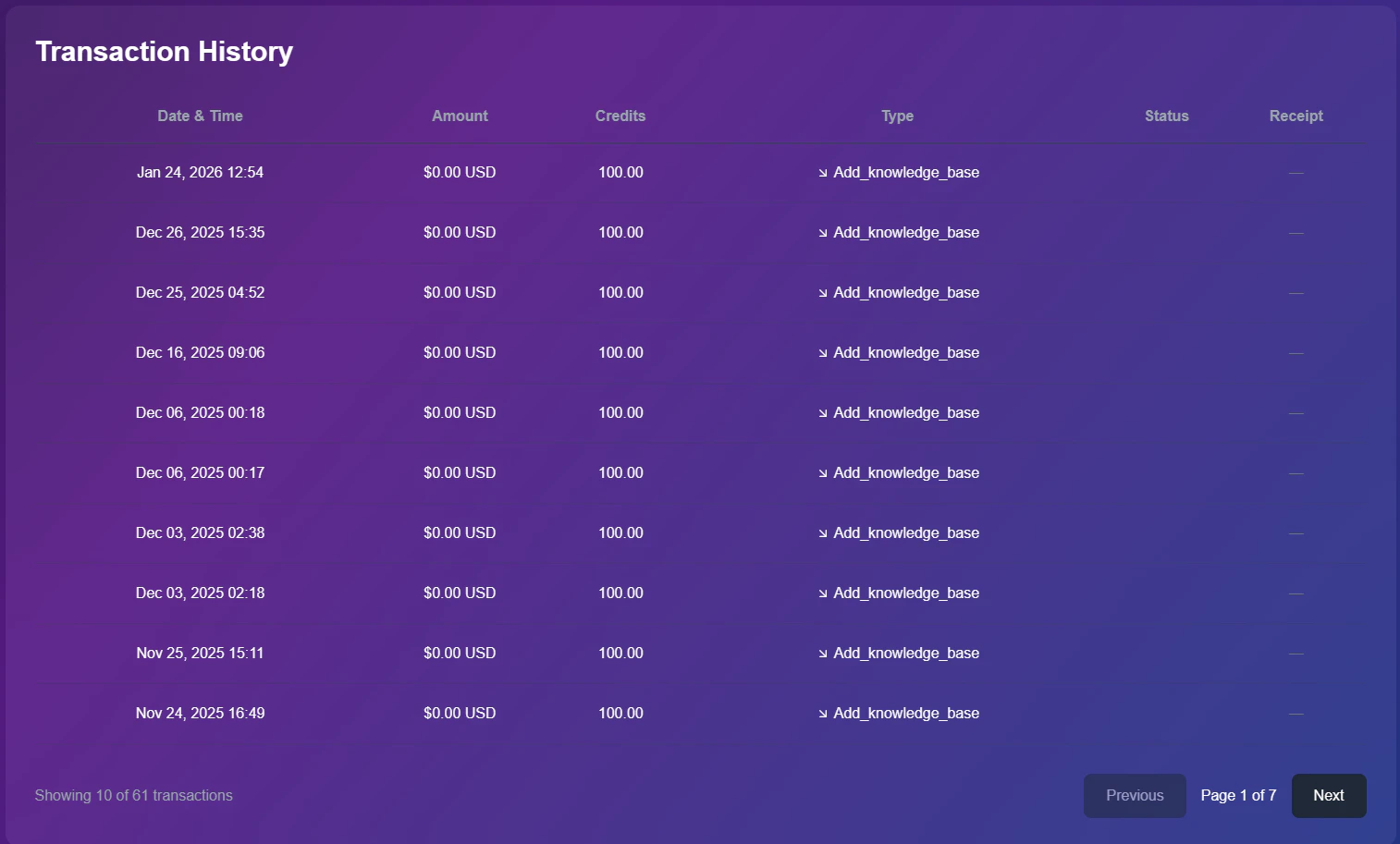 ### Data Columns
* **Date & Time:** Exact timestamp of the purchase.
* **Amount:** Total cost in USD.
* **Credits:** The net volume added to your balance.
* **Type:** The trigger source (e.g., `Plan_Purchase` or `Add_knowledge_base`).
**Scope Notice:** This history reflects transactions for your **Personal Workspace** only. Transactions related to your Agency Dashboard clients are tracked separately in the [Agency Billing](/agency/dashboard) section.
### Data Columns
* **Date & Time:** Exact timestamp of the purchase.
* **Amount:** Total cost in USD.
* **Credits:** The net volume added to your balance.
* **Type:** The trigger source (e.g., `Plan_Purchase` or `Add_knowledge_base`).
**Scope Notice:** This history reflects transactions for your **Personal Workspace** only. Transactions related to your Agency Dashboard clients are tracked separately in the [Agency Billing](/agency/dashboard) section.