> ## Documentation Index
> Fetch the complete documentation index at: https://support.snowie.ai/llms.txt
> Use this file to discover all available pages before exploring further.
# Billing & Subscription
> Manage your monthly plan, payment methods, and invoices.
## Overview
The **Billing** page is the financial hub of your account. Unlike the **Credits** page (which handles usage), this section controls your access to the Snowie platform itself.
 ## Subscription Management
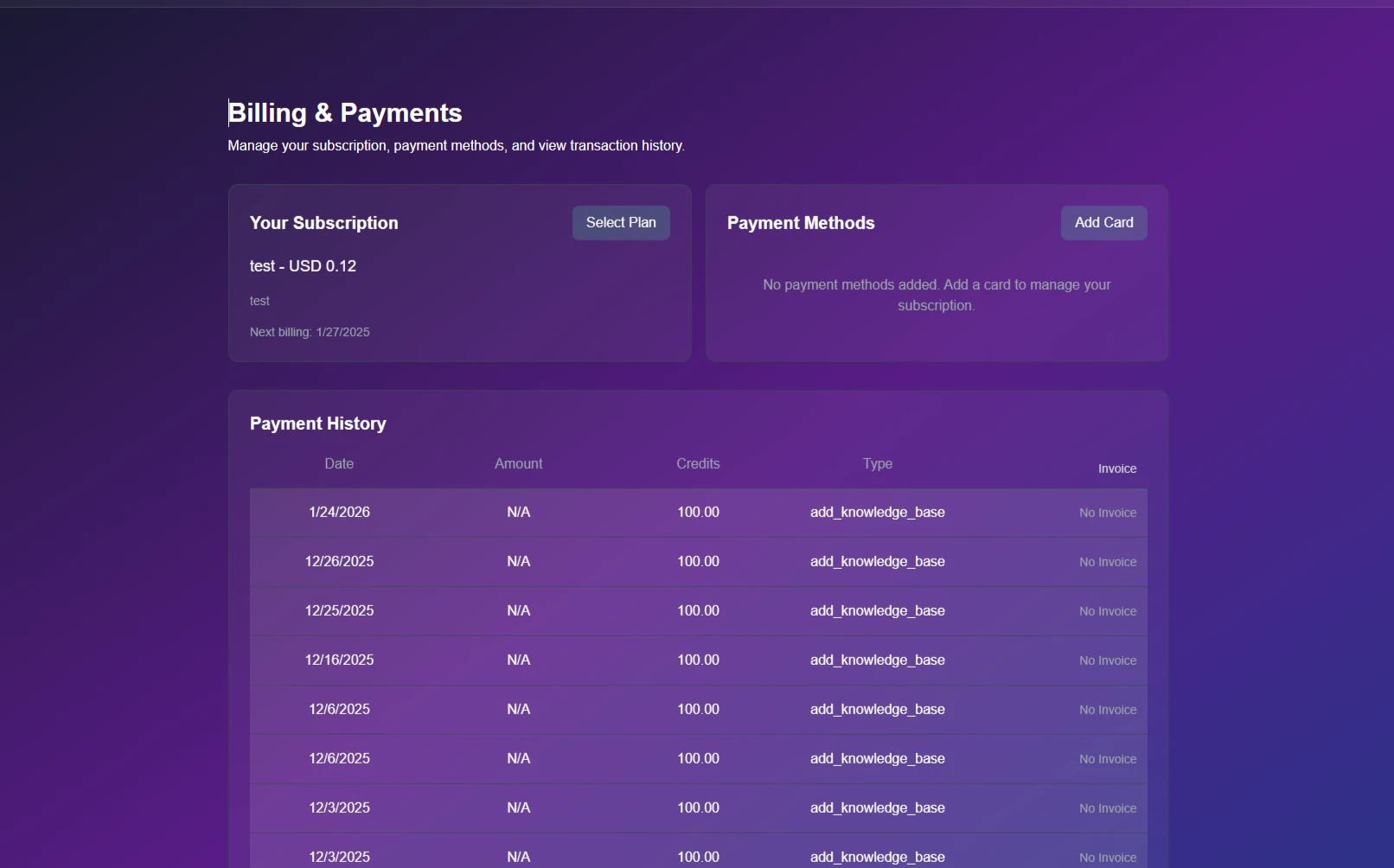
Your current plan status and renewal dates are displayed at the top of the page.
* **Current Plan:** Indicates your active tier (e.g., "Snowie.ai Monthly").
* **Next Billing:** The specific date your credit card will be charged for the renewal.
### Changing Your Plan
Follow these steps to upgrade or downgrade your SaaS tier.
Click the blue **Select Plan** button located on your subscription card.
A modal will appear displaying the available options.
## Subscription Management
Your current plan status and renewal dates are displayed at the top of the page.
* **Current Plan:** Indicates your active tier (e.g., "Snowie.ai Monthly").
* **Next Billing:** The specific date your credit card will be charged for the renewal.
### Changing Your Plan
Follow these steps to upgrade or downgrade your SaaS tier.
Click the blue **Select Plan** button located on your subscription card.
A modal will appear displaying the available options.
 * **Compare:** Review the pricing (e.g., $97/mo vs $297/mo) and feature sets.
* **Select:** Click the plan you wish to switch to.
* *Note: Charges may be prorated based on your current billing cycle.*
***
## Payment Methods
Securely manage the cards used for automatic renewals.
* **Compare:** Review the pricing (e.g., $97/mo vs $297/mo) and feature sets.
* **Select:** Click the plan you wish to switch to.
* *Note: Charges may be prorated based on your current billing cycle.*
***
## Payment Methods
Securely manage the cards used for automatic renewals.
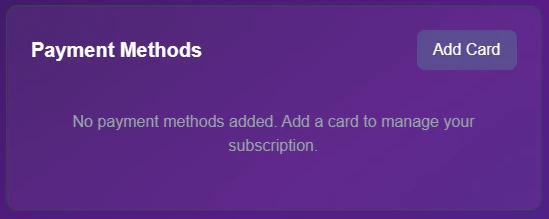 * **Add Card:** Click to enter a new payment method securely via Stripe.
* **Default Card:** If you have multiple cards, the one marked **Default** will be prioritized for all charges.
***
## Transaction History
This table acts as your consolidated ledger. It records every financial interaction, including subscription fees, credit top-ups, and one-time purchases.
* **Add Card:** Click to enter a new payment method securely via Stripe.
* **Default Card:** If you have multiple cards, the one marked **Default** will be prioritized for all charges.
***
## Transaction History
This table acts as your consolidated ledger. It records every financial interaction, including subscription fees, credit top-ups, and one-time purchases.
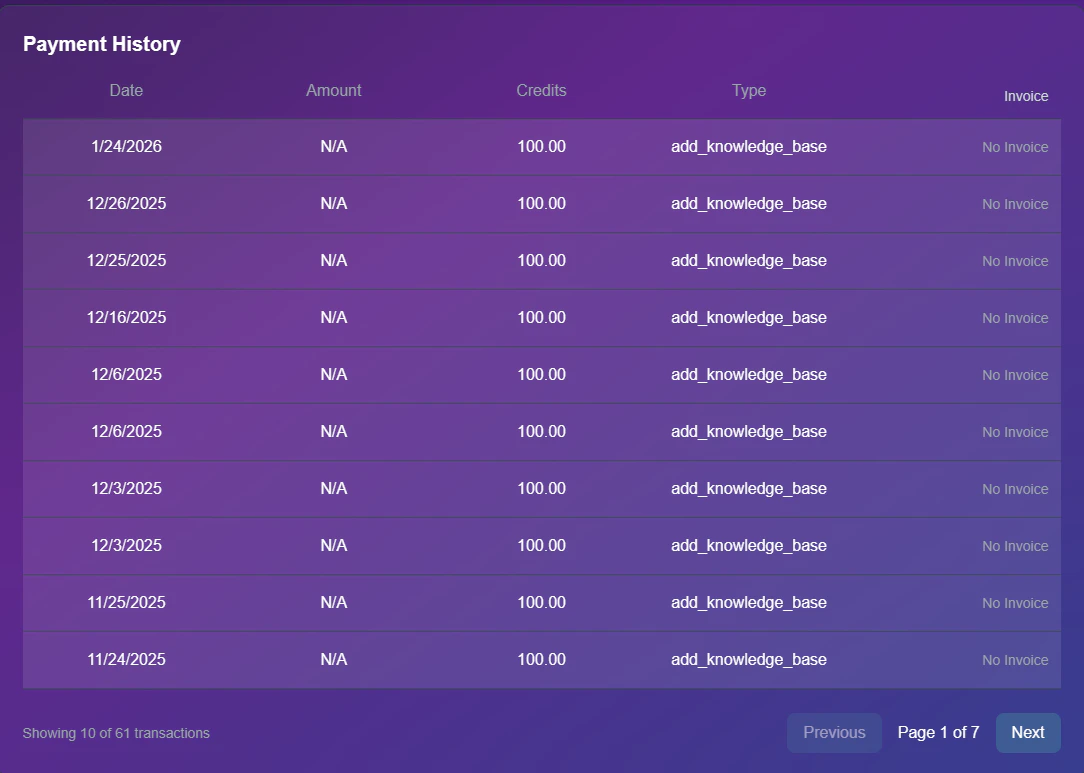 * **Date:** The exact timestamp of the transaction.
* **Amount:** Total charge in USD.
* **Type:** The category of the charge (e.g., `subscription_renewal` or `add_knowledge_base`).
* **Invoice:** Click the download icon to retrieve a PDF receipt for your tax records.
**Cross-Reference:** This history mirrors the data found on the [Credits Page](/profile/credits), but provides the additional ability to download official PDF invoices.
* **Date:** The exact timestamp of the transaction.
* **Amount:** Total charge in USD.
* **Type:** The category of the charge (e.g., `subscription_renewal` or `add_knowledge_base`).
* **Invoice:** Click the download icon to retrieve a PDF receipt for your tax records.
**Cross-Reference:** This history mirrors the data found on the [Credits Page](/profile/credits), but provides the additional ability to download official PDF invoices.