> ## Documentation Index
> Fetch the complete documentation index at: https://support.snowie.ai/llms.txt
> Use this file to discover all available pages before exploring further.
# Webhooks
> Send real-time call data to any URL
## Overview
Webhooks allow you to bridge Snowie.ai with your external tech stack. By configuring a webhook, you can instantly push call data to platforms like Zapier, Make, or Slack immediately after a conversation ends.
 ## Managing Webhooks
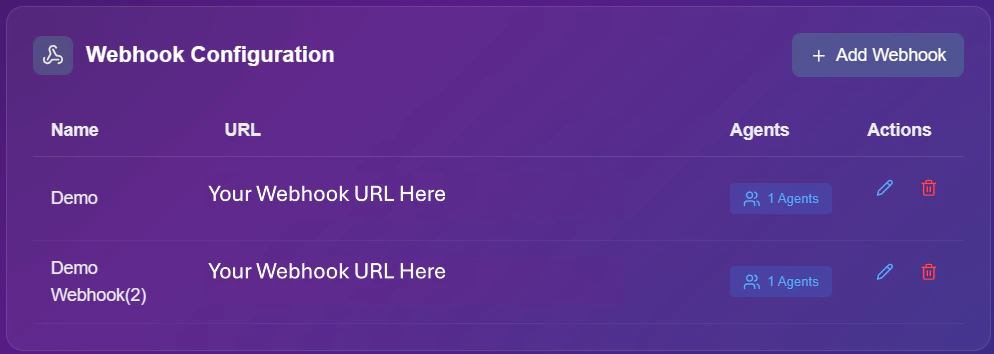
Use the control panel actions to maintain your existing connections.
Click the "Agents" button to see exactly which assistants are currently triggering this webhook.
Update the **Webhook Name**, change the **Destination URL**, or modify the **Selected Agents**.
Permanently remove a webhook if it is no longer needed.
## Adding a Webhook
Follow these steps to set up a new real-time data stream.
Click the **+ Add Webhook** button located in the top right corner of the dashboard.
Enter the core details for your integration:
* **Name:** Give your webhook a recognizable label (e.g., "Zapier Lead Sync").
* **URL:** Paste the destination endpoint provided by your automation tool.
Decide which assistants will use this integration.
## Managing Webhooks
Use the control panel actions to maintain your existing connections.
Click the "Agents" button to see exactly which assistants are currently triggering this webhook.
Update the **Webhook Name**, change the **Destination URL**, or modify the **Selected Agents**.
Permanently remove a webhook if it is no longer needed.
## Adding a Webhook
Follow these steps to set up a new real-time data stream.
Click the **+ Add Webhook** button located in the top right corner of the dashboard.
Enter the core details for your integration:
* **Name:** Give your webhook a recognizable label (e.g., "Zapier Lead Sync").
* **URL:** Paste the destination endpoint provided by your automation tool.
Decide which assistants will use this integration.
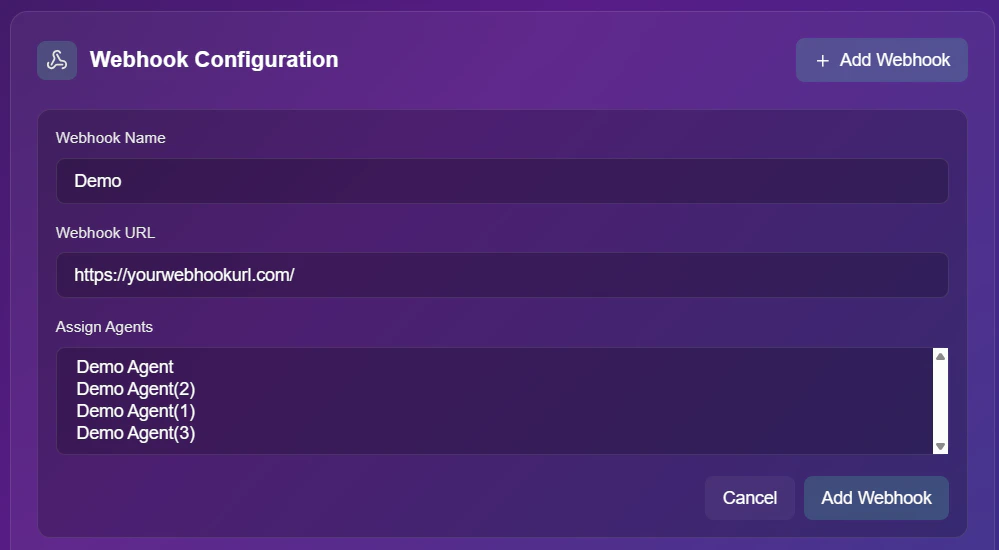 * **Selection:** You can choose **"All Agents"** to trigger for every call, or select specific bots like "Sales Bot".