> ## Documentation Index
> Fetch the complete documentation index at: https://support.snowie.ai/llms.txt
> Use this file to discover all available pages before exploring further.
# LeadConnector (GHL)
> Sync contacts and calendars with HighLevel
## Overview
Connect your HighLevel (GoHighLevel) account to Snowie.ai to automatically sync contacts and enable seamless calendar bookings for your AI agents.
 ## Step-by-Step Connection Guide
Follow these steps exactly to link your LeadConnector account.
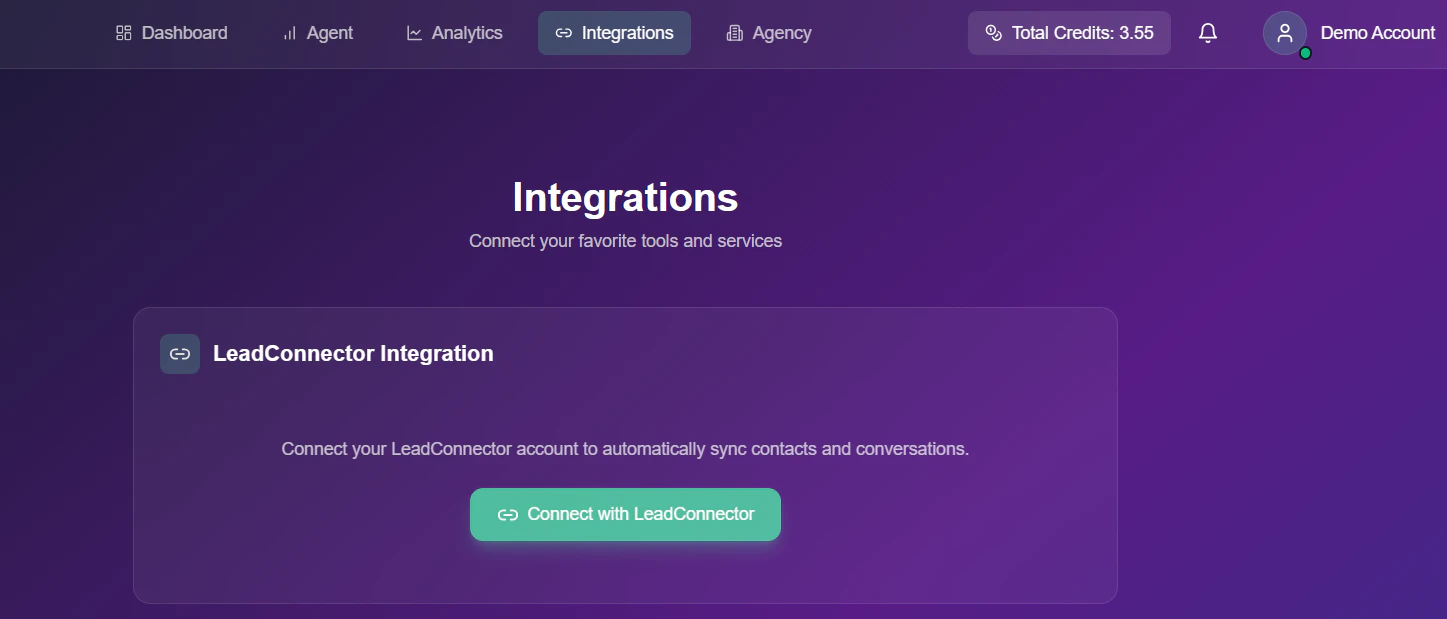
Navigate to the **Integrations** tab from the top navigation bar in your Snowie dashboard.
Locate the **LeadConnector Integration** card and click the green **Connect with LeadConnector** button.
A new window will open showing the **Install Confirmation** screen.
* **Action**: Click the blue **Next** button at the bottom right to proceed.
After confirming the installation, you will be redirected to the **Select an Account** page.
**Crucial Rule:** You must select your **Agency Account** first and foremost.
* **Selection**: Locate your Agency name in the list to begin the handshake.
* **Redirect Loop Warning**: If you select a sub-account instead of the Agency account at this stage, you will see a red alert: *"Select a Sub Agency. Redirecting in 1 seconds..."* and be pushed back to this selection screen.
Once the Agency account is successfully selected, the system will redirect you back to **app.snowie.ai**.
* **Automatic Prompt**: You will be immediately prompted to complete the **Sub-Agency Account Connection**.
* **Final Redirection**: The system will automatically send you back to the **Select Your Account** page one last time.
* **Choosing the Sub-Account**: Now, you can finally select the specific **Sub-Account** you wish to manage within your Snowie workspace.
**Kindly Note:** You cannot connect a sub-account directly to Snowie.ai without first authorizing your Agency account. Attempting to skip the Agency selection will result in an automatic redirection loop to protect the integration handshake.
## Troubleshooting
* **Stuck in Redirection**: If you are repeatedly prompted to select an account, ensure your first selection was the **Agency** level account.
* **Sub-Account Missing**: Ensure you have the necessary permissions within the GHL Agency settings for the sub-accounts you want to link.
## Step-by-Step Connection Guide
Follow these steps exactly to link your LeadConnector account.
Navigate to the **Integrations** tab from the top navigation bar in your Snowie dashboard.
Locate the **LeadConnector Integration** card and click the green **Connect with LeadConnector** button.
A new window will open showing the **Install Confirmation** screen.
* **Action**: Click the blue **Next** button at the bottom right to proceed.
After confirming the installation, you will be redirected to the **Select an Account** page.
**Crucial Rule:** You must select your **Agency Account** first and foremost.
* **Selection**: Locate your Agency name in the list to begin the handshake.
* **Redirect Loop Warning**: If you select a sub-account instead of the Agency account at this stage, you will see a red alert: *"Select a Sub Agency. Redirecting in 1 seconds..."* and be pushed back to this selection screen.
Once the Agency account is successfully selected, the system will redirect you back to **app.snowie.ai**.
* **Automatic Prompt**: You will be immediately prompted to complete the **Sub-Agency Account Connection**.
* **Final Redirection**: The system will automatically send you back to the **Select Your Account** page one last time.
* **Choosing the Sub-Account**: Now, you can finally select the specific **Sub-Account** you wish to manage within your Snowie workspace.
**Kindly Note:** You cannot connect a sub-account directly to Snowie.ai without first authorizing your Agency account. Attempting to skip the Agency selection will result in an automatic redirection loop to protect the integration handshake.
## Troubleshooting
* **Stuck in Redirection**: If you are repeatedly prompted to select an account, ensure your first selection was the **Agency** level account.
* **Sub-Account Missing**: Ensure you have the necessary permissions within the GHL Agency settings for the sub-accounts you want to link.