> ## Documentation Index
> Fetch the complete documentation index at: https://support.snowie.ai/llms.txt
> Use this file to discover all available pages before exploring further.
# HubSpot Setup Guide
> Step-by-step instructions for installing and using the Snowie AI HubSpot integration.
## Overview
**Snowie AI** integrates with HubSpot to bridge the gap between AI interactions and your CRM. This integration allows you to:
* **Automate Lead Entry**: Instantly push contact details captured by AI agents into HubSpot.
* **Centralize Conversation Data**: View full AI interaction summaries directly on the HubSpot contact timeline.
***
## Install the App
Follow the guide below to connect your HubSpot account to **Snowie AI**.
Start by logging into your account.
* Open your **Snowie.ai** dashboard.
* Click on the **Integrations** tab in the top navigation bar.
* Find the card labeled **Login with HubSpot**.
Start the handshake process.
* Click the green **Connect with HubSpot** button.
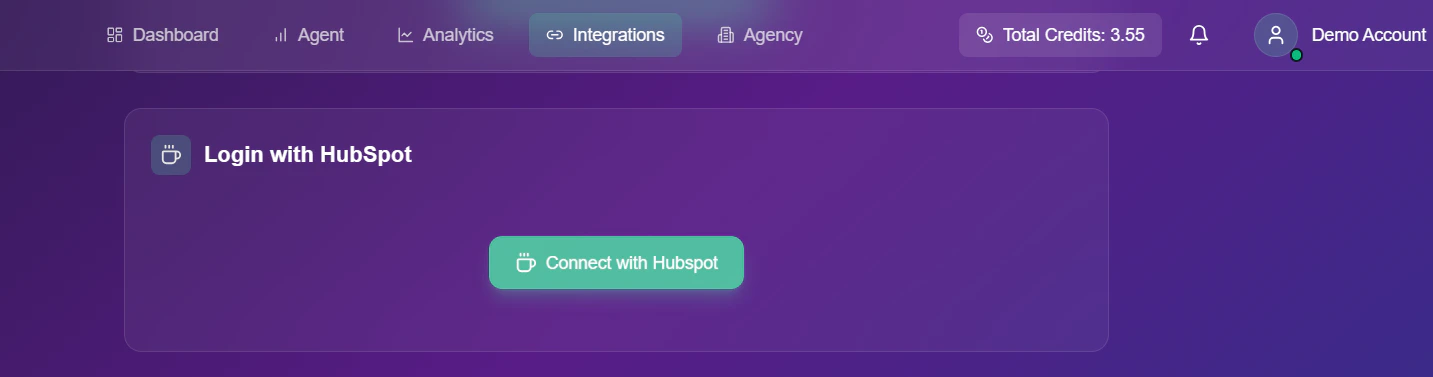 * You will be automatically redirected to the secure HubSpot authorization portal.
Select the correct portal.
* On the **Choose an account** screen, click the radio button next to the HubSpot portal you want to link.
* You will be automatically redirected to the secure HubSpot authorization portal.
Select the correct portal.
* On the **Choose an account** screen, click the radio button next to the HubSpot portal you want to link.
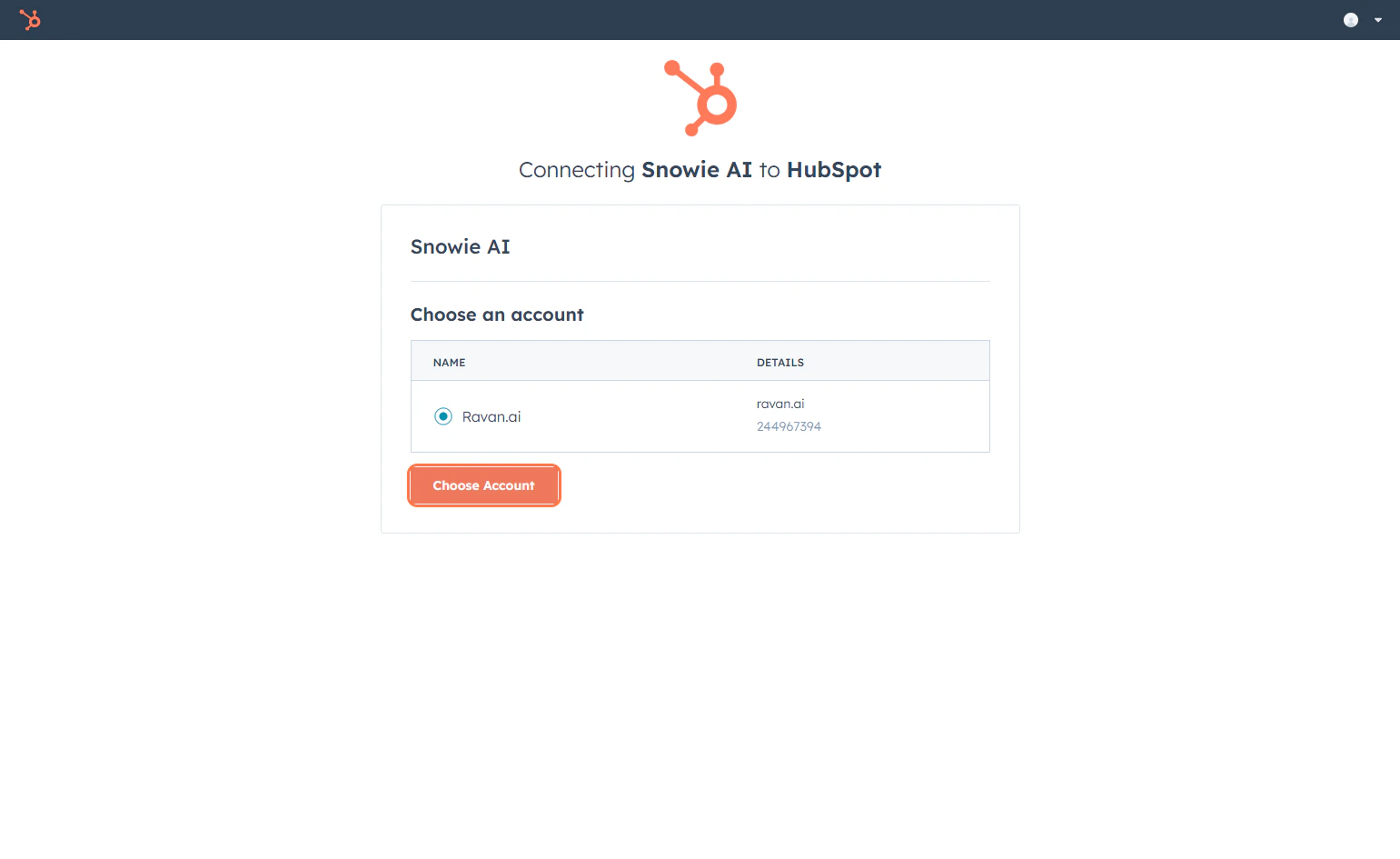 * Click **Choose Account** to confirm.
Complete the connection permissions.
* Click **Choose Account** to confirm.
Complete the connection permissions.
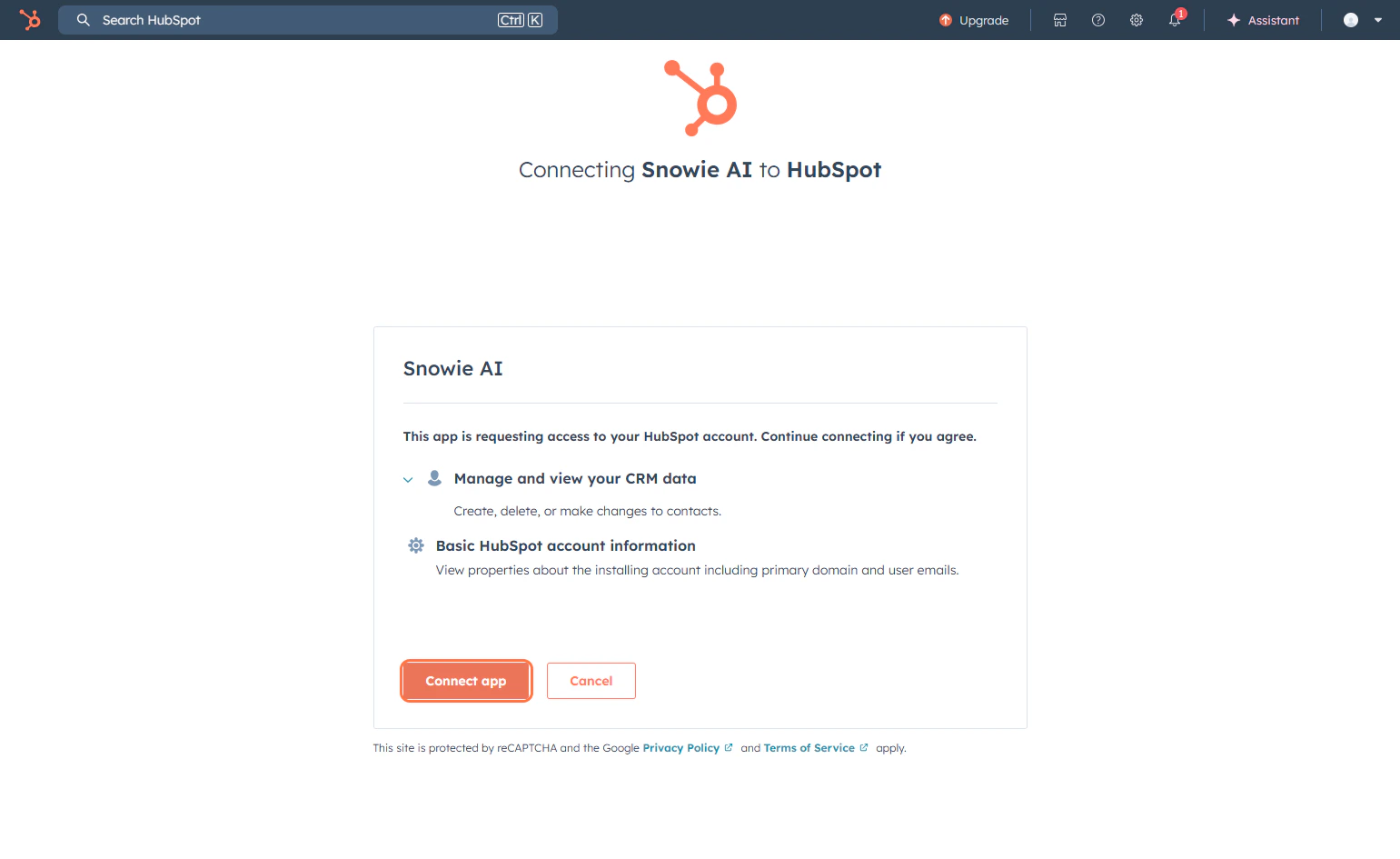 * Review the requested permissions and click the orange **Connect app** button.
* You will be redirected back to **Snowie.ai**, and the status indicator should now read **Connected**.
* Review the requested permissions and click the orange **Connect app** button.
* You will be redirected back to **Snowie.ai**, and the status indicator should now read **Connected**.