> ## Documentation Index
> Fetch the complete documentation index at: https://support.snowie.ai/llms.txt
> Use this file to discover all available pages before exploring further.
# Dashboard Overview
> Your central command center for performance tracking
## At a Glance
The **Dashboard** provides an immediate, high-level view of your AI workforce. It allows you to monitor spend, track lead volume, and audit individual conversations in real-time.
 ## Video Walkthrough
Watch a quick tour of the dashboard features and metrics.
## Performance Metrics
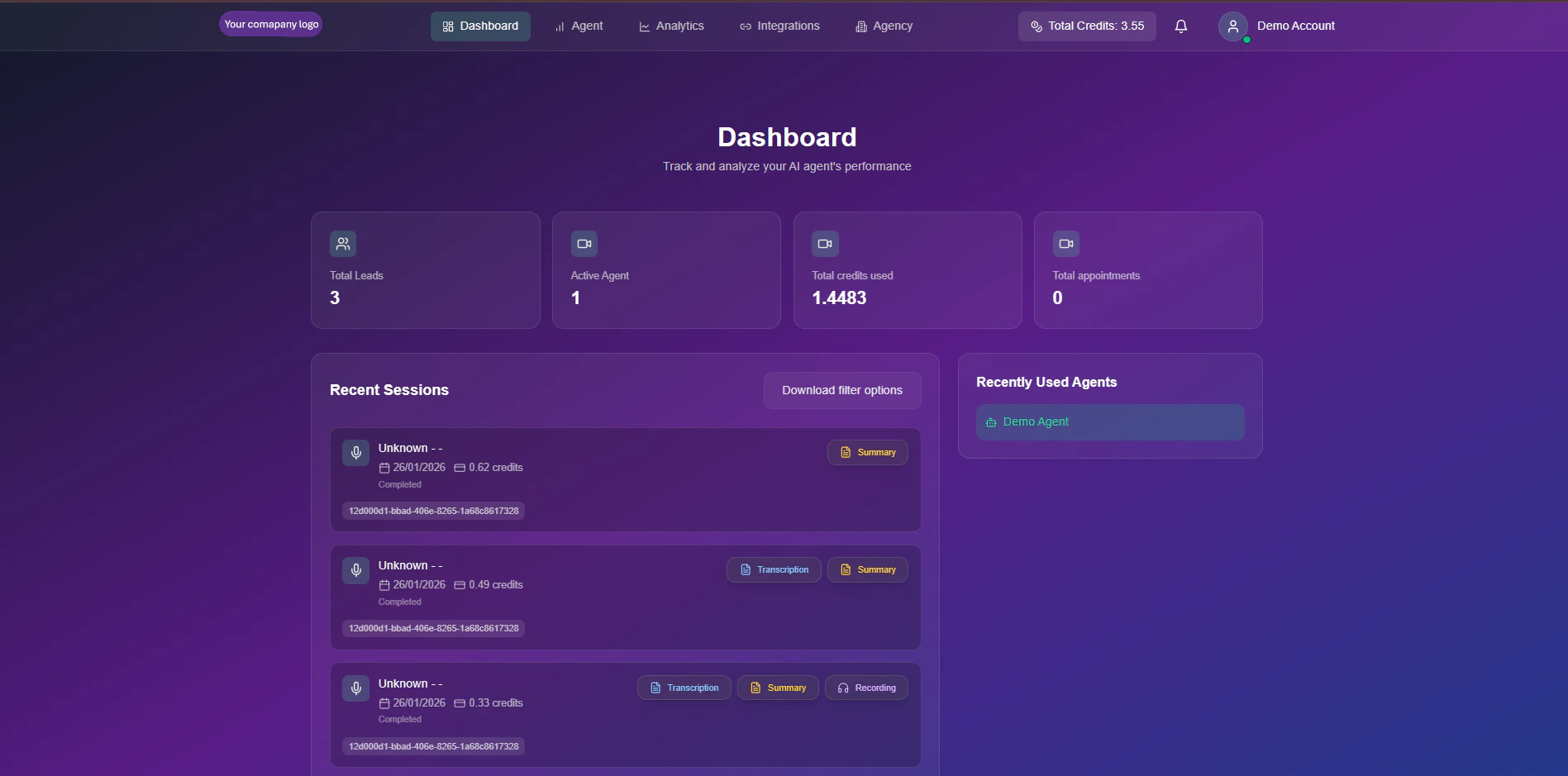
Located at the top of the view, these 4 KPIs give you the pulse of your operation:
**Volume Tracker:** The cumulative number of contacts your agents have engaged with.
**Deployment Status:** The number of unique agents currently online and ready to take calls.
**Resource Usage:** Total credits consumed across all agents. *(1 Credit ≈ 1 Minute)*.
**Conversion Success:** Confirmed bookings directly synced to your calendar.
## Activity Feed
The main body of the dashboard displays a chronological log of all agent interactions. You can click on any row to expand the full session details.
* **Caller ID:** The name or phone number of the contact.
* **Date & Duration:** When the call occurred and how long it lasted.
* **Cost:** The exact credit deduction for that specific session.
* **Status:** Visual tags indicating `Completed` (Green), `Missed` (Red), or `Failed` (Gray).
Inside each session, you can access forensic tools for quality assurance:
* **📝 Transcription:** A full text log of the conversation.
* **🧠 AI Summary:** A concise recap of the user's intent and the call outcome.
* **▶️ Audio Recording:** Listen to the raw audio file to verify agent tone and accuracy.
## Quick Navigation
On the right-hand side, the **Recently Used Agents** panel creates a shortcut to your most active projects.
**Pro Tip:** Use this sidebar to rapidly switch context between agents (e.g., swapping from "Sales Bot" to "Support Bot") without having to navigate back to the full agent library.
## Video Walkthrough
Watch a quick tour of the dashboard features and metrics.
## Performance Metrics
Located at the top of the view, these 4 KPIs give you the pulse of your operation:
**Volume Tracker:** The cumulative number of contacts your agents have engaged with.
**Deployment Status:** The number of unique agents currently online and ready to take calls.
**Resource Usage:** Total credits consumed across all agents. *(1 Credit ≈ 1 Minute)*.
**Conversion Success:** Confirmed bookings directly synced to your calendar.
## Activity Feed
The main body of the dashboard displays a chronological log of all agent interactions. You can click on any row to expand the full session details.
* **Caller ID:** The name or phone number of the contact.
* **Date & Duration:** When the call occurred and how long it lasted.
* **Cost:** The exact credit deduction for that specific session.
* **Status:** Visual tags indicating `Completed` (Green), `Missed` (Red), or `Failed` (Gray).
Inside each session, you can access forensic tools for quality assurance:
* **📝 Transcription:** A full text log of the conversation.
* **🧠 AI Summary:** A concise recap of the user's intent and the call outcome.
* **▶️ Audio Recording:** Listen to the raw audio file to verify agent tone and accuracy.
## Quick Navigation
On the right-hand side, the **Recently Used Agents** panel creates a shortcut to your most active projects.
**Pro Tip:** Use this sidebar to rapidly switch context between agents (e.g., swapping from "Sales Bot" to "Support Bot") without having to navigate back to the full agent library.