> ## Documentation Index
> Fetch the complete documentation index at: https://support.snowie.ai/llms.txt
> Use this file to discover all available pages before exploring further.
# Knowledge Base
> Train your agent on your specific company data and files.
## Overview
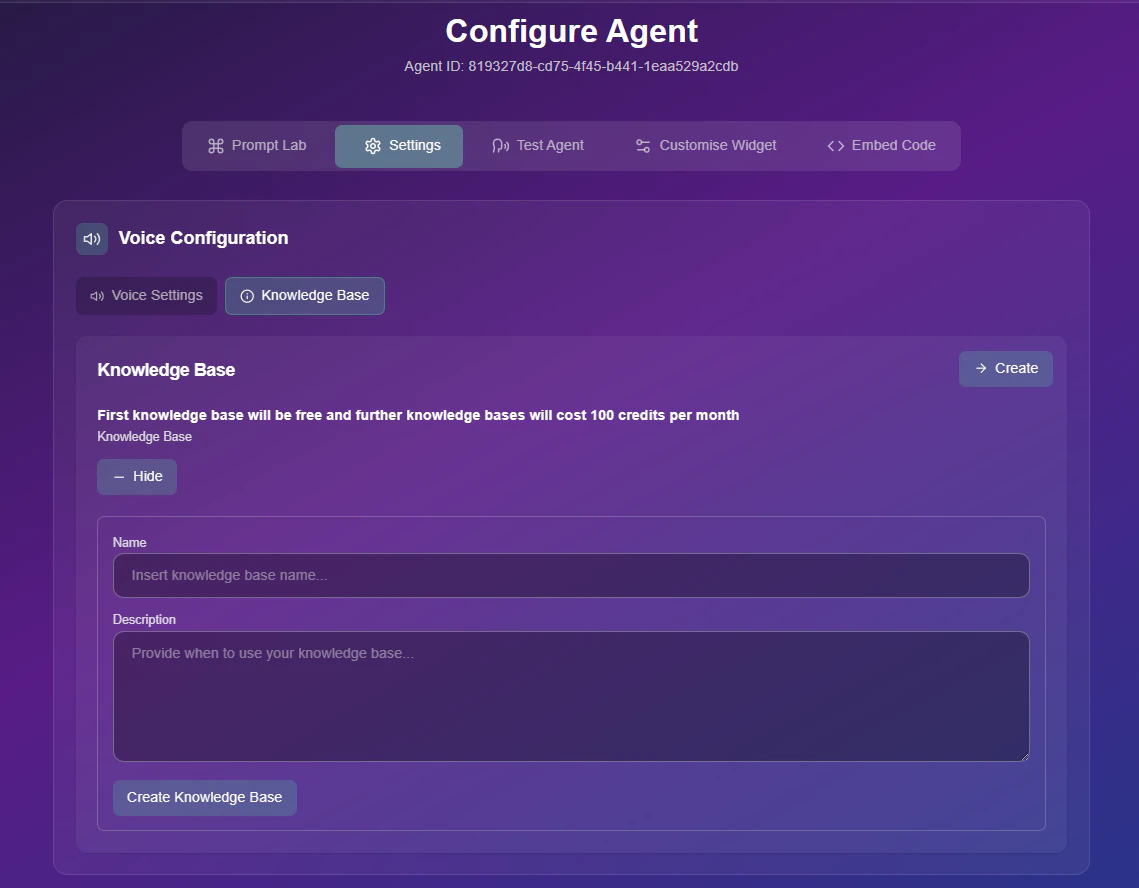
The Knowledge Base (KB) acts as the agent's long-term memory. By connecting a data source, you enable the agent to answer specific questions about your pricing, return policies, and services without hallucinating.
 ## Video Tutorial
Watch a step-by-step guide on how to upload documents and train your agent.
## Configuration Guide
Follow these steps to assign intelligence to your agent:
Navigate to the **Knowledge Base** dropdown menu.
* **Existing KB:** If you have already created a library, simply select it from the list to attach it to this agent.
* **Create New:** Select **+ Create New KB** to start a fresh training session.
If creating a new source, choose your training method below:
Best for internal documents, PDF brochures, and policy manuals.
1. **Upload:** Drag and drop your files (PDF, DOCX, TXT) into the upload zone.
2. **Processing:** Wait for the system to index the text.
3. **Save:** Name your KB (e.g., "HR Policies 2026") and click save.
Best for public websites, help centers, and blogs.
1. **Enter URL:** Paste the link to your target page (e.g., `https://snowie.ai/pricing`).
2. **Scrape:** Click **Fetch Content**. Snowie will extract the visible text.
3. **Verify:** Check the extracted text count to ensure accuracy.
Once attached, click **Save Changes**.
**Pro Tip:** After updating a Knowledge Base, always go to the **Test Agent** tab and ask a specific question (e.g., *"What is your refund policy?"*) to verify the new training is active.
**Pricing Notice:** Your first Knowledge Base is included for free. Creating additional specialized KBs may incur extra credit costs depending on your subscription plan.
## Video Tutorial
Watch a step-by-step guide on how to upload documents and train your agent.
## Configuration Guide
Follow these steps to assign intelligence to your agent:
Navigate to the **Knowledge Base** dropdown menu.
* **Existing KB:** If you have already created a library, simply select it from the list to attach it to this agent.
* **Create New:** Select **+ Create New KB** to start a fresh training session.
If creating a new source, choose your training method below:
Best for internal documents, PDF brochures, and policy manuals.
1. **Upload:** Drag and drop your files (PDF, DOCX, TXT) into the upload zone.
2. **Processing:** Wait for the system to index the text.
3. **Save:** Name your KB (e.g., "HR Policies 2026") and click save.
Best for public websites, help centers, and blogs.
1. **Enter URL:** Paste the link to your target page (e.g., `https://snowie.ai/pricing`).
2. **Scrape:** Click **Fetch Content**. Snowie will extract the visible text.
3. **Verify:** Check the extracted text count to ensure accuracy.
Once attached, click **Save Changes**.
**Pro Tip:** After updating a Knowledge Base, always go to the **Test Agent** tab and ask a specific question (e.g., *"What is your refund policy?"*) to verify the new training is active.
**Pricing Notice:** Your first Knowledge Base is included for free. Creating additional specialized KBs may incur extra credit costs depending on your subscription plan.