> ## Documentation Index
> Fetch the complete documentation index at: https://support.snowie.ai/llms.txt
> Use this file to discover all available pages before exploring further.
# Payment Gateways
> Connect Stripe or PayPal to collect payments from your clients.
## Overview
To monetize your white-label platform and sell subscriptions to your clients, you must connect a valid payment processor. You can verify your connection status in the **Billing** tab of the Agency Dashboard.
 ## Connect Your Processor
Select your preferred provider below to view the connection guide.
Stripe is the recommended processor for seamless credit card handling.
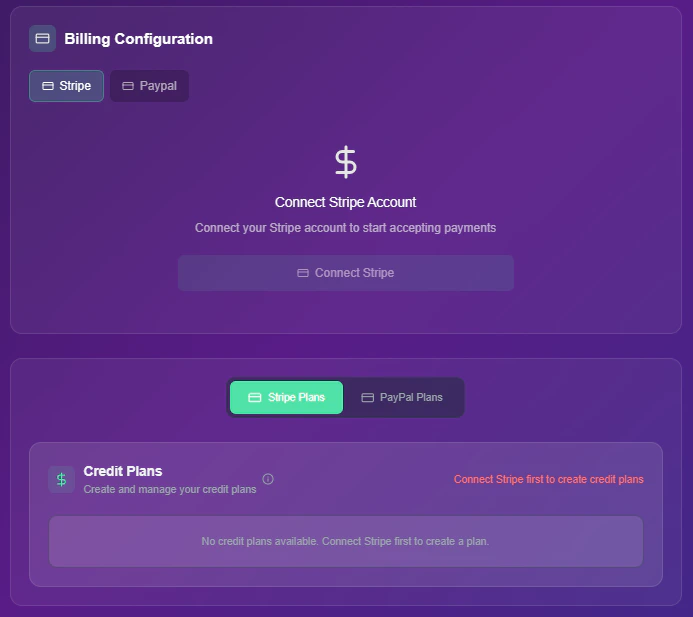
Click the **Stripe** tab within the billing configuration menu.
Click the **Connect Stripe** button. You will be redirected to the secure Stripe login portal to authorize the handshake.
Once verified, you will see a success message indicating your account is ready to accept charges.
## Connect Your Processor
Select your preferred provider below to view the connection guide.
Stripe is the recommended processor for seamless credit card handling.
Click the **Stripe** tab within the billing configuration menu.
Click the **Connect Stripe** button. You will be redirected to the secure Stripe login portal to authorize the handshake.
Once verified, you will see a success message indicating your account is ready to accept charges.
 Alternative option for clients who prefer PayPal wallets.
Click the **PayPal** tab within the billing configuration menu.
Click **Connect Paypal**. A popup window will appear asking you to log in to your business account.
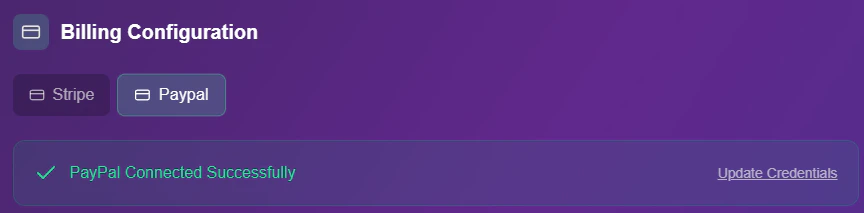
Once connected, the dashboard will refresh to show your active PayPal status and any existing plans.
Alternative option for clients who prefer PayPal wallets.
Click the **PayPal** tab within the billing configuration menu.
Click **Connect Paypal**. A popup window will appear asking you to log in to your business account.
Once connected, the dashboard will refresh to show your active PayPal status and any existing plans.