> ## Documentation Index
> Fetch the complete documentation index at: https://support.snowie.ai/llms.txt
> Use this file to discover all available pages before exploring further.
# Agency Dashboard
> Configure your white-label settings and branding
## Overview
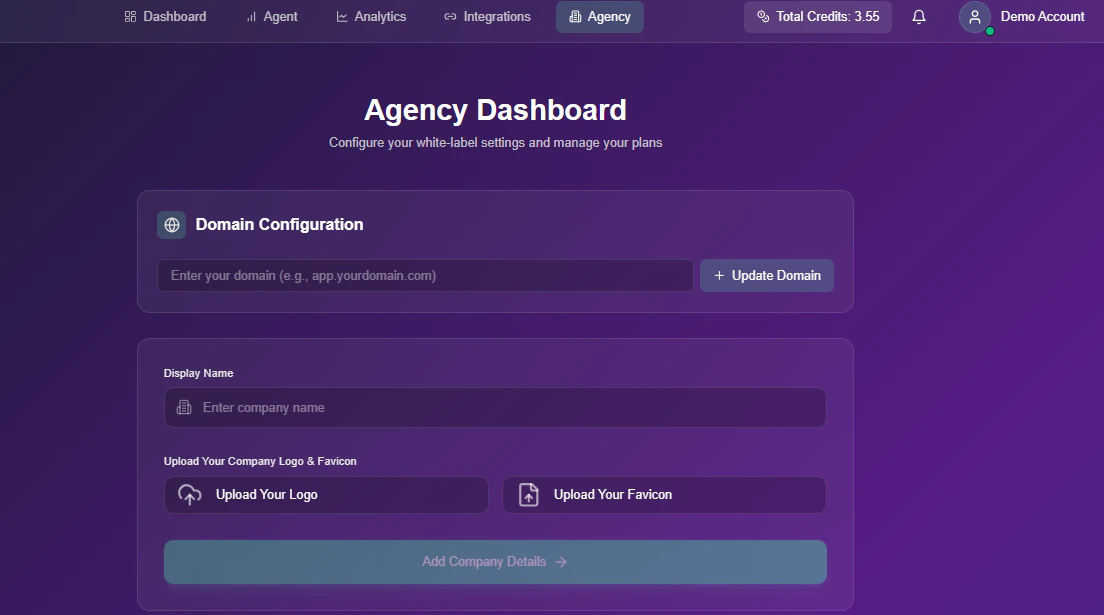
The **Agency** tab is your command center. Here you configure the "look and feel" of the platform so your clients interact with your brand, not ours.
 ## Domain Configuration
Host the platform on your own URL (e.g., `app.myagency.com`) so clients never see "Snowie.ai".
Type your desired subdomain (e.g., `YourDomain.com`) in the input field.
* Click **Update Domain** to generate your specific DNS requirements.
You will be provided with a **Required DNS Record** (usually an `A` record).
1. Log in to your DNS provider (e.g., GoDaddy, Cloudflare).
2. Add the record exactly as shown in the dashboard.
Click the **Verify** button to confirm the DNS configuration.
* *Note: Propagation can take anywhere from a few minutes to 24 hours depending on your provider.*
***
## Company Branding
Customize the visual identity of the dashboard.
* **Display Name**: The name of your agency (e.g., "Apex Solutions").
* **Company Logo**: Upload your main logo (SVG or PNG recommended).
* **Favicon**: Upload the small icon that appears in the browser tab.
***
## Email Customization
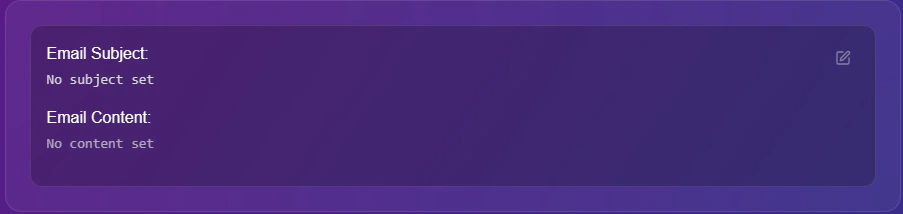
Control the branding of the "Welcome Email" sent to new clients.
## Domain Configuration
Host the platform on your own URL (e.g., `app.myagency.com`) so clients never see "Snowie.ai".
Type your desired subdomain (e.g., `YourDomain.com`) in the input field.
* Click **Update Domain** to generate your specific DNS requirements.
You will be provided with a **Required DNS Record** (usually an `A` record).
1. Log in to your DNS provider (e.g., GoDaddy, Cloudflare).
2. Add the record exactly as shown in the dashboard.
Click the **Verify** button to confirm the DNS configuration.
* *Note: Propagation can take anywhere from a few minutes to 24 hours depending on your provider.*
***
## Company Branding
Customize the visual identity of the dashboard.
* **Display Name**: The name of your agency (e.g., "Apex Solutions").
* **Company Logo**: Upload your main logo (SVG or PNG recommended).
* **Favicon**: Upload the small icon that appears in the browser tab.
***
## Email Customization
Control the branding of the "Welcome Email" sent to new clients.
 ### Mandatory Variables
To ensure clients receive their credentials, you **must** include these variables in your template logic:
| Variable | Function |
| :------------------ | :--------------------------------------------------- |
| `{{company_name}}` | Automatically inserts your agency's display name. |
| `{{user_name}}` | Inserts the client's full name. |
| `{{user_email}}` | Replaces with the client's registered login email. |
| `{{temp_password}}` | Replaces with the auto-generated temporary password. |
**Delivery Failure:** If these specific variables are missing from your template, the system will not send the welcome email, and your client will not receive their credentials.
### Mandatory Variables
To ensure clients receive their credentials, you **must** include these variables in your template logic:
| Variable | Function |
| :------------------ | :--------------------------------------------------- |
| `{{company_name}}` | Automatically inserts your agency's display name. |
| `{{user_name}}` | Inserts the client's full name. |
| `{{user_email}}` | Replaces with the client's registered login email. |
| `{{temp_password}}` | Replaces with the auto-generated temporary password. |
**Delivery Failure:** If these specific variables are missing from your template, the system will not send the welcome email, and your client will not receive their credentials.