> ## Documentation Index
> Fetch the complete documentation index at: https://support.snowie.ai/llms.txt
> Use this file to discover all available pages before exploring further.
# Client Management
> Onboard users, manage credits, and set usage limits.
## Overview
The **Dashboard** tab is your central hub for managing sub-accounts. It gives you a birds-eye view of your entire agency's health and individual client performance.
 ### Agency Health
At the top of the page, 4 key metrics provide a real-time health check of your business.
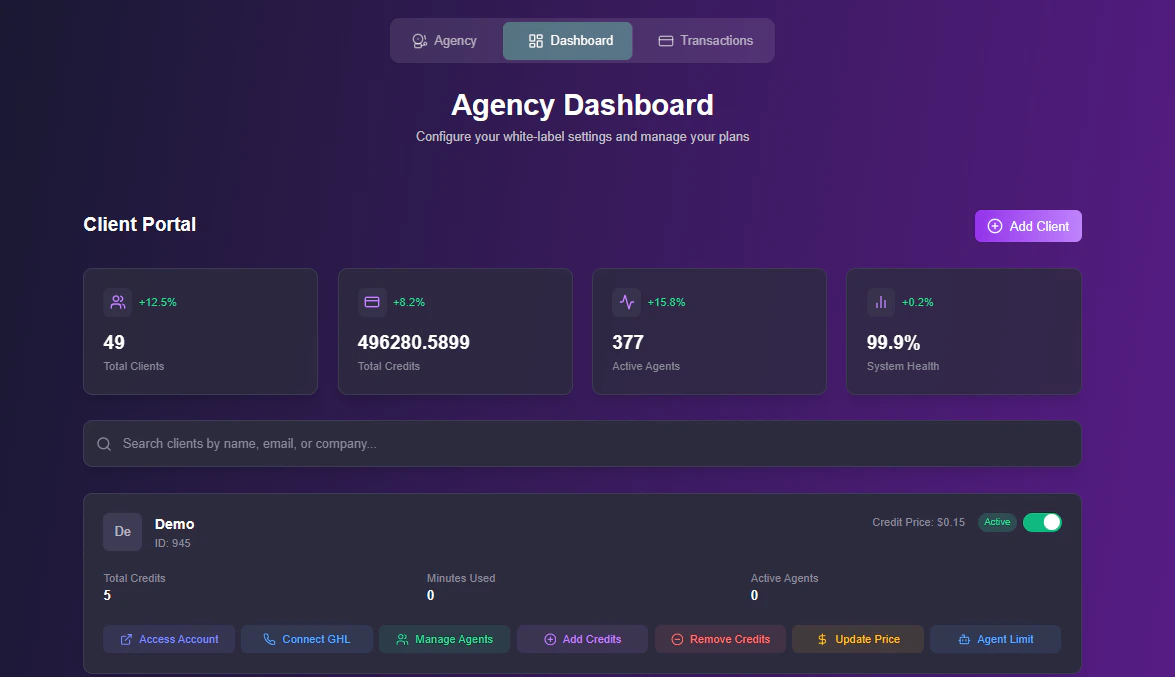
The number of users onboarded (e.g., 49).
Cumulative balance across your entire ecosystem.
Total bots deployed by all clients combined.
Uptime and performance status (e.g., 99.9%).
***
## Onboarding Clients
To bring a new user onto your platform, click the **+ Add Client** button. Choose your preferred method below:
Best for scaling. Send a link and let the client do the work.
1. **Copy Link:** Grab the unique URL (e.g., `https://app.youragency.com/register`).
2. **Send:** Email this to your lead. They will create their own password and profile.
Best for white-glove service. Create the account for them.
### Agency Health
At the top of the page, 4 key metrics provide a real-time health check of your business.
The number of users onboarded (e.g., 49).
Cumulative balance across your entire ecosystem.
Total bots deployed by all clients combined.
Uptime and performance status (e.g., 99.9%).
***
## Onboarding Clients
To bring a new user onto your platform, click the **+ Add Client** button. Choose your preferred method below:
Best for scaling. Send a link and let the client do the work.
1. **Copy Link:** Grab the unique URL (e.g., `https://app.youragency.com/register`).
2. **Send:** Email this to your lead. They will create their own password and profile.
Best for white-glove service. Create the account for them.
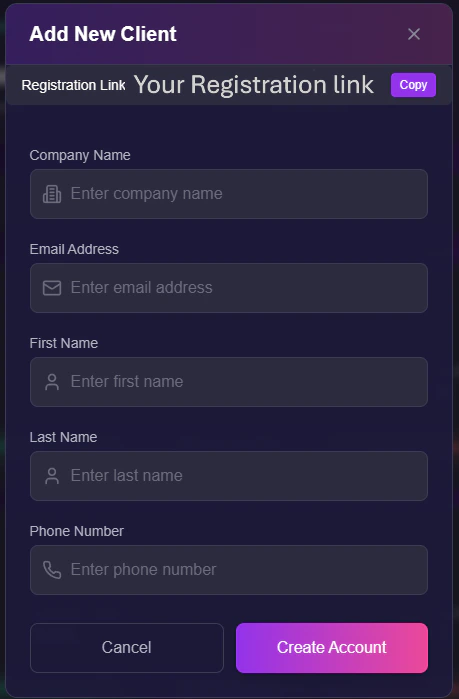 1. **Enter Details:** Fill out their Company Name, Email, and Phone.
2. **Create:** The account is generated instantly, and you can begin setting up agents before they even log in.
***
## Managing Clients
Each user appears as a card in your list. This card acts as the "Control Panel" for that specific sub-account.
1. **Enter Details:** Fill out their Company Name, Email, and Phone.
2. **Create:** The account is generated instantly, and you can begin setting up agents before they even log in.
***
## Managing Clients
Each user appears as a card in your list. This card acts as the "Control Panel" for that specific sub-account.
 ### 1. Access & Security
* **Suspend User:** Use the toggle in the top-right to instantly lock a client out (useful for non-payment).
* **Impersonate:** Click **Access Account** to view the dashboard *as* the client. This allows you to debug issues or build agents on their behalf.
* **Connect GHL:** Only **you** (The Agency Owner) can authorize a HighLevel connection. Clients cannot perform this handshake themselves.
### 2. Credit Banking
You act as the central bank for your users.
### 1. Access & Security
* **Suspend User:** Use the toggle in the top-right to instantly lock a client out (useful for non-payment).
* **Impersonate:** Click **Access Account** to view the dashboard *as* the client. This allows you to debug issues or build agents on their behalf.
* **Connect GHL:** Only **you** (The Agency Owner) can authorize a HighLevel connection. Clients cannot perform this handshake themselves.
### 2. Credit Banking
You act as the central bank for your users.
 * **Add Credits:** Transfer credits from your Master Balance to the client.
**Deduction Alert:** Credits added to a client are **subtracted** from your agency's master balance immediately.
* **Remove Credits:** Take unused credits back from a client.
Removed credits are returned to your agency master balance.
* **Update Price:** Set a custom **Cost Per Credit** for this specific user (e.g., User A pays $0.20, User B pays $0.15).
### 3. Restrictions & Locking
Protect your intellectual property by limiting what clients can touch.
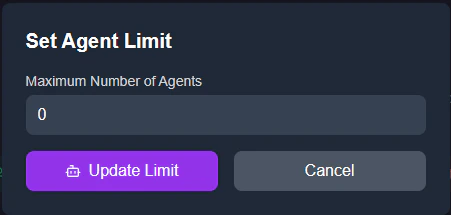
* **Agent Limit:** Set a hard cap on the number of bots they can create (e.g., "Max 5").
* **Add Credits:** Transfer credits from your Master Balance to the client.
**Deduction Alert:** Credits added to a client are **subtracted** from your agency's master balance immediately.
* **Remove Credits:** Take unused credits back from a client.
Removed credits are returned to your agency master balance.
* **Update Price:** Set a custom **Cost Per Credit** for this specific user (e.g., User A pays $0.20, User B pays $0.15).
### 3. Restrictions & Locking
Protect your intellectual property by limiting what clients can touch.
* **Agent Limit:** Set a hard cap on the number of bots they can create (e.g., "Max 5").
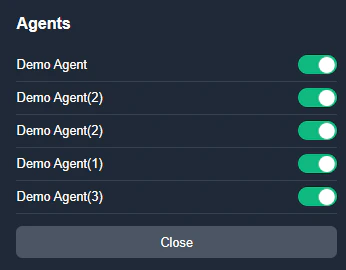
 * **Lock Configuration:** When viewing a client's agent list, you can **Lock** specific bots.
* **Effect:** The client can use the agent, but they **cannot edit** the prompt or settings.
* **Use Case:** Perfect for selling "Done-For-You" setups where you don't want clients breaking the prompt logic.
* **Lock Configuration:** When viewing a client's agent list, you can **Lock** specific bots.
* **Effect:** The client can use the agent, but they **cannot edit** the prompt or settings.
* **Use Case:** Perfect for selling "Done-For-You" setups where you don't want clients breaking the prompt logic.